
Download Zimbra Desktop – Secure Offline Email, Calendar & Contacts Tool
Overview & Core Features
Zimbra Desktop is an AJAX‑based collaboration suite that brings the power of a full‑featured mail server to the local workstation. Designed with Web 2.0 principles, the app lets you compose, read, and organize email, appointments, contacts, and documents while offline, then automatically synchronises every change the moment you reconnect to the internet. The software supports a wide range of email protocols (POP3, IMAP, SMTP) and can aggregate Gmail, Yahoo! Mail, Outlook.com, AOL, and virtually any business mail server into a single, unified inbox. For users who need a reliable, free alternative to Microsoft Outlook on Windows or a robust mail client that can sit beside Apple Mail on macOS, Zimbra Desktop offers a compelling blend of email, calendar, and file‑management capabilities without the cost of a subscription.
Key Feature List
- Offline email composition and sending – drafts are queued and sent automatically when a connection is restored.
- Unified inbox that merges Gmail, Yahoo!, Outlook.com, POP3, IMAP, and corporate Exchange accounts.
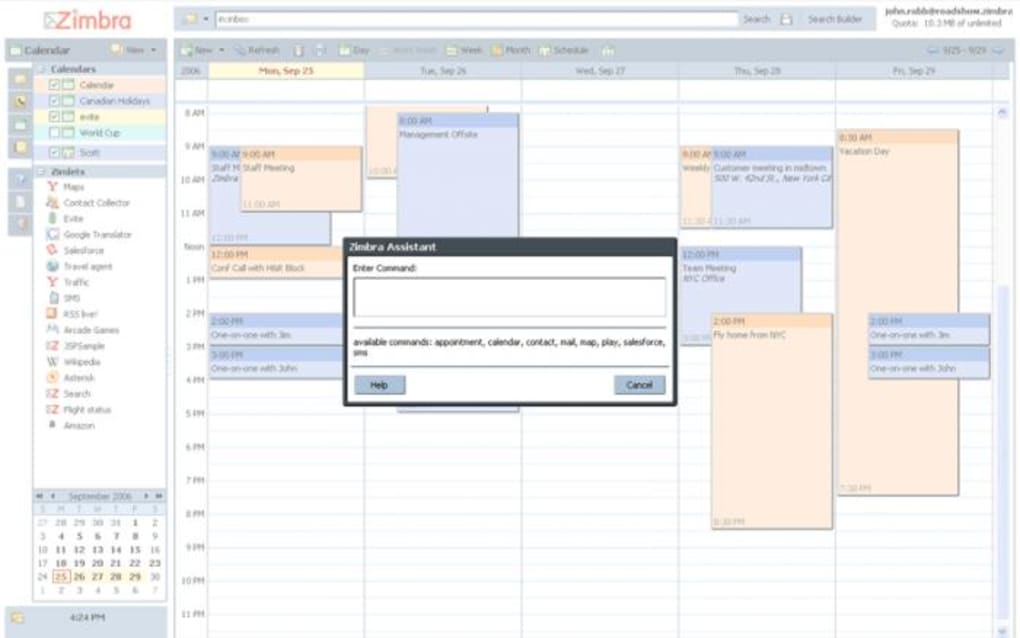
- Integrated calendar with drag‑and‑drop event creation, reminders, and iCal import/export.
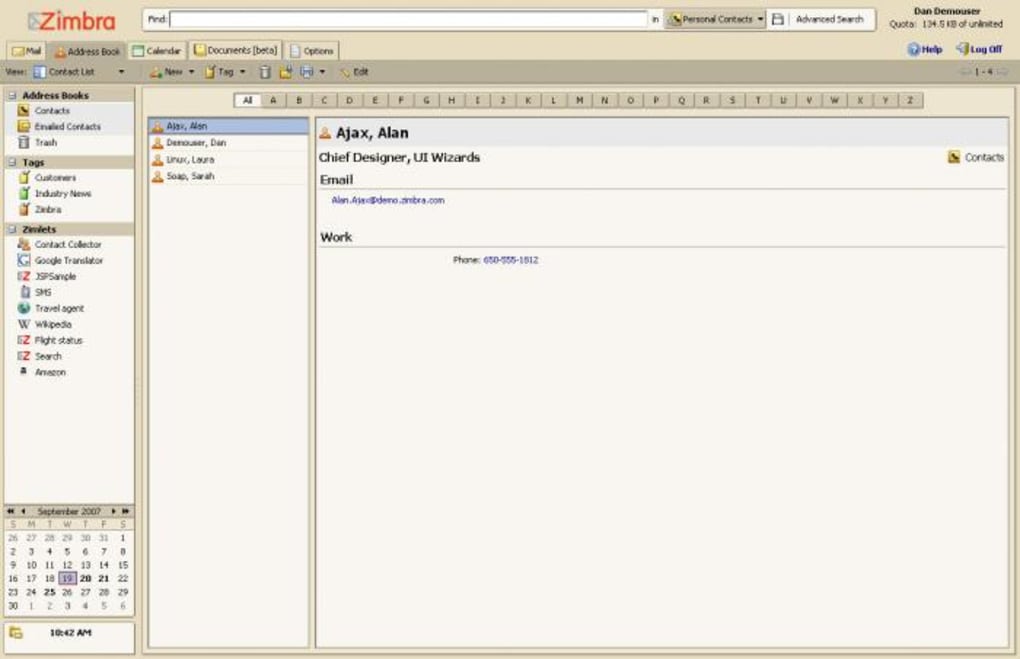
- Contact manager with grouping, duplicate detection, and vCard support.
- Document repository that syncs with Zimbra Server, enabling quick access to shared files.
- Powerful search bar that indexes mail, contacts, calendar entries, and documents for instant retrieval.
- Customisable notification system for new mail, upcoming meetings, and task deadlines.
- Cross‑platform support for Windows 7/8/10/11 and macOS 10.12+ (Linux community builds are also available).
- Secure SSL/TLS connections for all server communications.
- Automatic software updates that keep the client current without manual intervention.
Installation, Configuration & Daily Usage
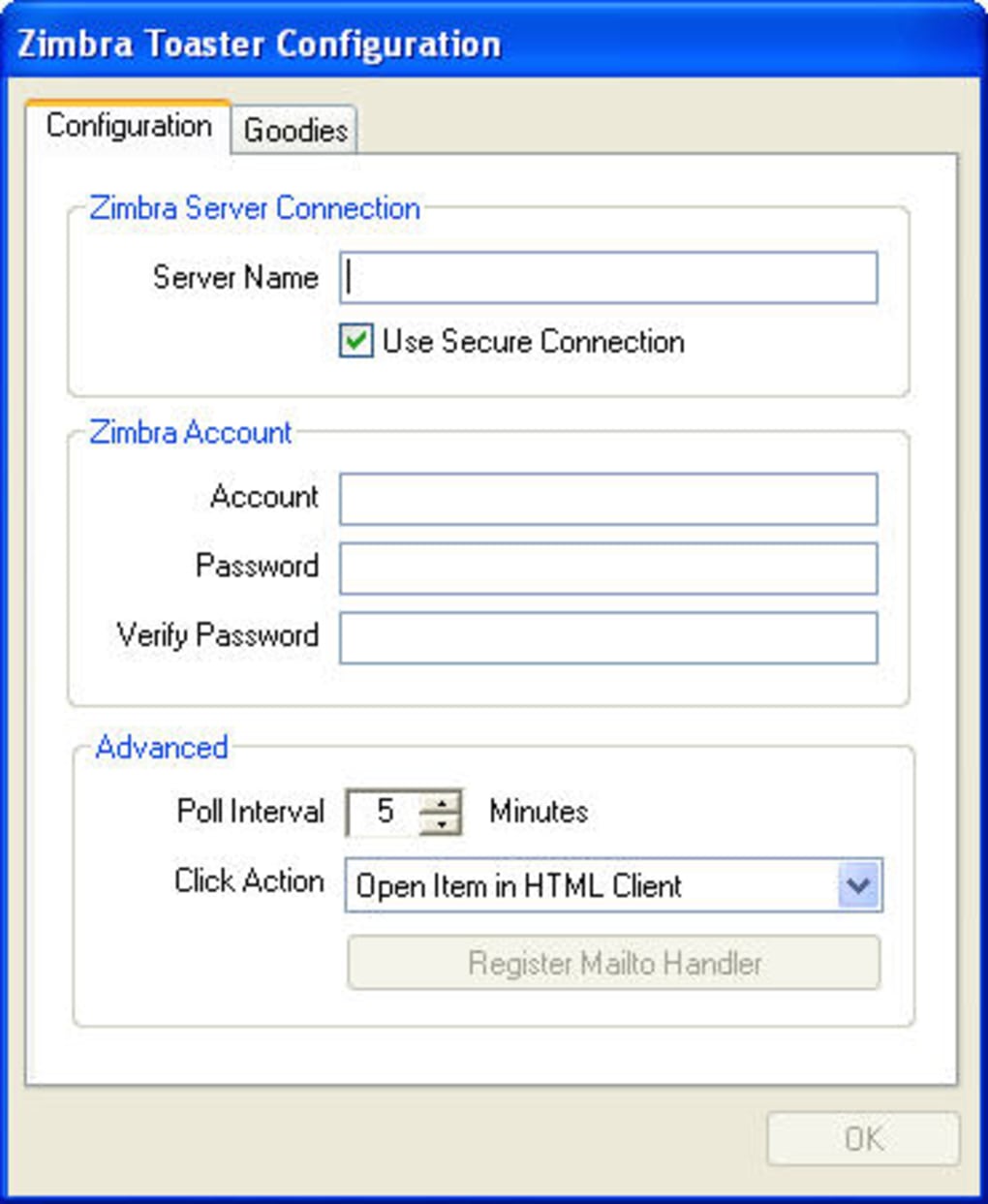
Getting Zimbra Desktop up and running does require a modest time investment, but the process is straightforward for users who follow the steps carefully. First, download the installer from the official Zimbra website – the package is free and digitally signed, ensuring a secure download. Run the installer (Windows .exe or macOS .dmg) and follow the on‑screen wizard. The setup will prompt you to create a Zimbra account; this account acts as the local hub for syncing your mail, calendar, and contacts with the remote Zimbra Server. If you already have an existing Zimbra Server, you can simply enter your credentials; otherwise, you can register a new free account directly from the installer.
After the initial install, launch Zimbra Desktop and navigate to the “Accounts” tab. Here you will add each email service you wish to sync. For Gmail or Yahoo! accounts, enable “Allow less secure apps” or generate an app‑specific password if you use two‑factor authentication. For corporate POP3/IMAP accounts, enter the server address, port numbers, and security type (SSL/TLS). Zimbra will test the connection and, once verified, begin a background sync that may take several minutes depending on mailbox size.
Daily usage mirrors a typical desktop email client. The main window is divided into tabs – Inbox, Calendar, Contacts, and Files – each opening in a new browser‑like pane. The search field at the top instantly filters results across all tabs, though large mailboxes can experience a slight lag.
When you are offline, you can still compose messages, edit calendar events, and manage contacts; Zimbra stores these changes locally and uploads them automatically upon reconnection. The client also supports drag‑and‑drop attachments, rich‑text formatting, and signature management. Regular updates are delivered through the “Check for Updates” menu, ensuring you stay on the latest secure version without manual downloads.
Compatibility, Pros & Cons
Zimbra Desktop runs natively on Windows (7, 8, 10, 11) and macOS (10.12 Sierra and newer). Community‑maintained builds exist for Linux distributions such as Ubuntu and Fedora, though official support is limited to the two major desktop operating systems. The application does not have dedicated Android or iOS versions; instead, Zimbra provides separate mobile apps that sync with the same server backend, allowing a seamless experience across desktop and mobile devices.
Pros
- Free, open‑source solution with no hidden subscription fees.
- Robust offline capabilities – work without an internet connection and sync later.
- Aggregates multiple email services into one unified interface.
- Secure SSL/TLS communication and automatic updates keep the client safe.
- Feature‑rich calendar and contact management that rivals paid alternatives.
- Easy migration from Outlook or Apple Mail via standard import/export tools.
Cons
- Installation process is longer than typical mail clients; a Zimbra account is mandatory.
- Interface feels dated; it lacks the polished, native‑look experience of modern macOS or Windows 11 apps.
- Search performance can be slow with very large mailboxes.
- No native mobile app within the same package; users must install separate Zimbra mobile clients.
- Limited official support for Linux, relying on community contributions.
Overall Rating: 4/5 – Zimbra Desktop delivers a solid, free alternative for power users who need offline access, but its dated UI and setup steps keep it from being a universal replacement for Outlook or Apple Mail.
FAQ & Final Thoughts
Is Zimbra Desktop completely free to use?
Yes, Zimbra Desktop is released under an open‑source license and can be downloaded, installed, and used without any subscription fees.
Can I sync multiple Gmail accounts with Zimbra Desktop?
Absolutely. Zimbra Desktop supports unlimited Gmail, Yahoo!, Outlook.com, and any POP3/IMAP accounts. Each account is added separately in the “Accounts” tab.
How does offline mail handling work?
When you are offline, Zimbra stores new messages, calendar edits, and contact changes locally. Once a network connection is detected, the client automatically synchronises all pending actions with the Zimbra Server.
Is there a way to import Outlook PST files?
Yes. Zimbra Desktop includes an import wizard that can read Outlook PST files and migrate emails, contacts, and calendar entries into the Zimbra database.
Will Zimbra Desktop work on Windows 11 Home edition?
The client is fully compatible with Windows 11 Home, Pro, and Enterprise editions. Ensure you have the latest .NET runtime installed for optimal performance.
In summary, Zimbra Desktop remains a valuable, free desktop collaboration tool for users who prioritize offline access and the ability to unify multiple email accounts under one roof. While the installation steps and somewhat dated interface may deter casual users, power users and small‑to‑medium businesses will appreciate the robust feature set and secure, auto‑updating architecture. If you’re looking for a cost‑effective replacement for Outlook or a solid backup to Apple Mail, give Zimbra Desktop a try – download it today, set up your accounts, and experience the freedom of working offline without sacrificing sync reliability.







